


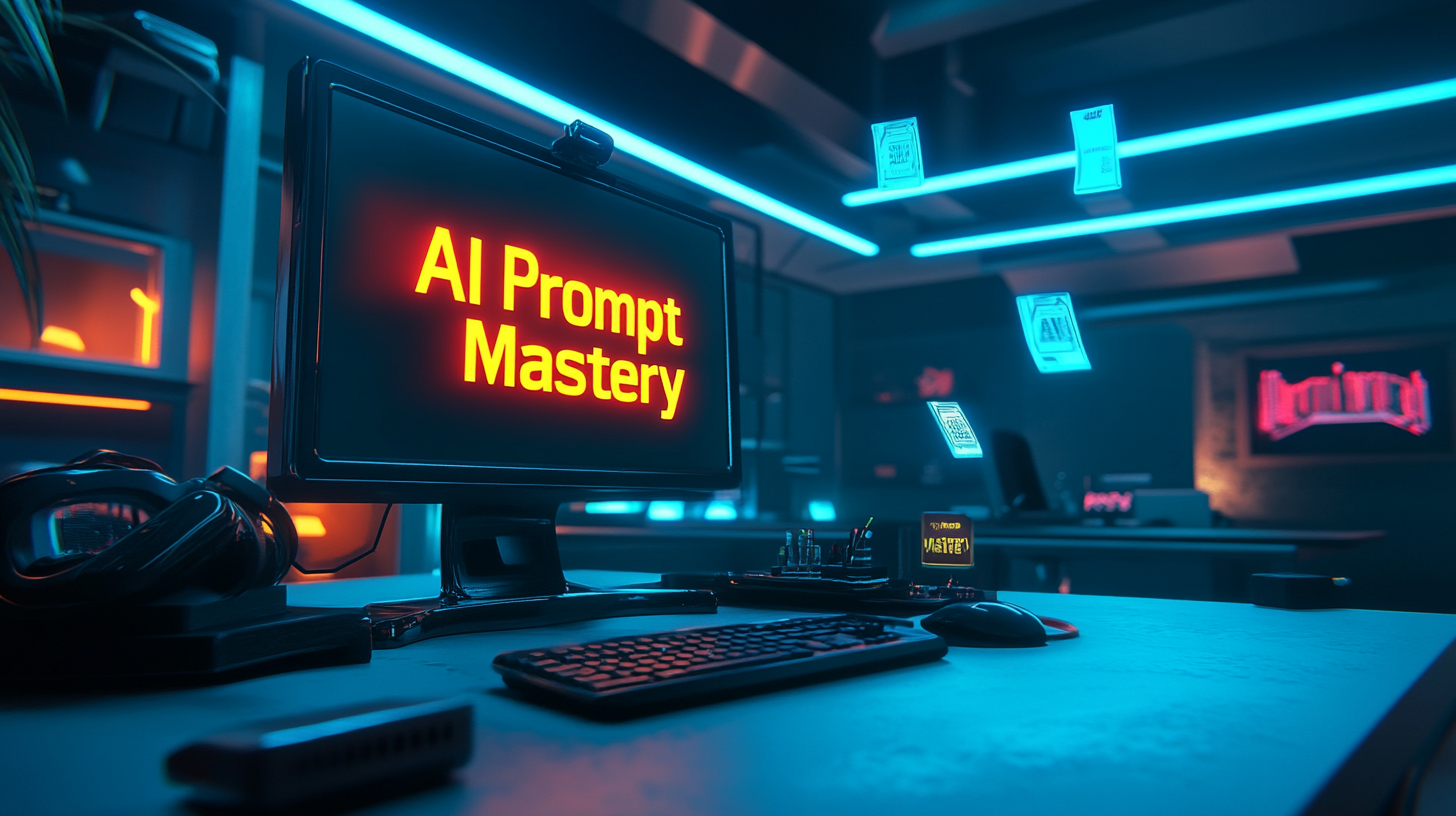
The 10 most important and effective prompt commands for generative images and text – Image: Xpert.Digital
Generative AI made easy: The most effective commands for text and visual content
These commands and techniques will help you achieve optimal results in both image and text generation – from creative artwork to precise content!
Creating effective prompts for generative AI models like MidJourney, ChatGPT, or other tools is crucial for achieving precise and creative results. Here are the 10 most important and effective prompt commands, divided into the categories of generative images and generative text:
For generative images (e.g., MidJourney, DALL-E)
1. Detailed description of the motif
Describe the desired image as precisely as possible: subject, style, colors, lighting and composition.
Example: `/imagine a futuristic cityscape at sunset, neon lights reflecting off wet streets, cyberpunk style, ultra-realistic, 16:9 aspect ratio`.
2. Style and genre information
Specify the desired style or genre: realistic, impressionistic, cartoon, etc.
Example: `/imagine a portrait of a woman in the style of Van Gogh, vibrant colors`.
3. Parameters for creativity and abstraction
Use parameters like `--stylize` or `--chaos` to control the AI's creativity. Higher values produce more artistic results; lower values remain more precise.
Example: `/imagine a surreal forest with glowing trees –stylize 700 –chaos 50`.
4. Weighted picture-to-picture prompts
Combine an uploaded image with a text prompt and control its influence with `--iw`.
Example: `/imagine a mystical castle in the clouds –iw 1.5`.
5. Negative Prompts
Remove unwanted elements using the `--no` parameter.
Example: `/imagine a cozy cabin in the woods –no people`.
6. Permutation prompts for variations
Create multiple variations of a motif using curly braces `{}`.
Example: `/imagine a {red, blue, green} dragon flying over a mountain`.
7. Adjust aspect ratio and resolution
Use parameters such as `–ar` (aspect ratio) and `–quality`.
Example: `/imagine a panoramic view of the ocean at sunset –ar 16:9 –quality 2`.
8. Chaos parameters for diversity
The `--chaos` parameter produces different interpretations of a prompt.
Example: `/imagine an abstract painting of the universe – chaos 80`.
9. Regional adjustments (Vary Region)
Highlight specific areas of an image for targeted editing or enhancement.
10. /describe command (MidJourney)
Upload an image and generate matching text prompts to achieve similar results.
For generative texts (e.g., ChatGPT)
1. Precise question formulation
Formulate clear and specific instructions for the AI, e.g.:
"Create a summary of a scientific article on climate change in a maximum of 100 words".
2. Define tone and style
Specify the desired writing style, e.g.: "Write a blog post in a casual tone about the advantages of remote work".
3. Chain-of-Thought Prompting
Request step-by-step explanations: "Explain to me step by step how an airplane flies.".
4. Add examples (Few-Shot Learning)
Provide examples of the desired output: "Formulate a polite email request like this example:".
5. Negative instructions
Avoid certain content by clearly stating exclusions: "Write a story about friendship without violence or conflict.".
6. Use structured prompts
Use lists or paragraphs for complex requests: "Create a list of the benefits of electromobility with a brief explanation for each.".
7. Promote creativity (Zero Shot)
Let the AI interpret freely: "Invent a futuristic technology and describe how it works.".
8. Contextualized queries
Offer background information: "Based on the latest trends in marketing, write an article about social media strategies.".
Iterative follow-up prompts
Refine the results by asking follow-up questions: "Can you make the text shorter?" or "Add an example".
10. Multilingual Prompts
Use multiple languages or have translations created: "Translate this text into French and explain the main terms in English".
Ten tips for creating the perfect midjourney prompt
A perfect prompt is concise, detailed, and well-structured. Utilize MidJourney's technical capabilities, such as parameters and template images, to precisely implement your vision!
To create the perfect mid-journey prompt, there are a variety of proven tips and strategies that promote precise and creative results. Here are the most important ones:
1. Precise and structured description
A clear structure helps the AI to better implement your ideas:
- Image type: Type of image (e.g. photo, drawing, oil painting).
- Main motif: The central element (e.g. person, animal, object).
- Scenery: Environment or context (e.g., forest, city).
- Time/Light: Time of day or lighting (e.g. sunset, neon lights).
- Style: Artistic inspiration or style (e.g., in the style of Monet, Cyberpunk).
- Parameters: Technical details such as aspect ratio (`–ar`), quality (`–q`), or style intensity (`–stylize`).
Example: `/imagine a serene forest landscape at sunrise, misty atmosphere, vibrant colors in the style of Claude Monet –ar 16:9 –q 2`
2. Conciseness and precision
Keep prompts as brief as necessary and as detailed as possible. Too many words can dilute the importance of individual aspects. Describe only the essentials and use precise terminology.
Example: Instead of saying "a man with a beard", specify: `/imagine a man with a neatly trimmed goatee`
3. Use adjectives and details
Describe colors, textures, and moods precisely. Adjectives like "vibrant," "dark," "soft," or "dramatic" help the AI to realize your vision.
Example: `/imagine a futuristic cityscape with glowing neon lights, dark rainy streets, and reflections on wet pavement`
4. Synonyms and word choice vary
Experiment with synonyms or change the order of the terms in the prompt. Small changes can have a big impact on the result.
Example: “beautiful” vs. “stunning” or “forest” vs. “woodland”.
5. Use negative prompts
Exclude unwanted elements using the `--no` parameter.
Example: `/imagine a peaceful meadow with wildflowers –no people`
6. Insert images as a template
Upload an image and combine it with a text prompt. The parameter `--iw` (image weight) controls the influence of the image.
Example: `/imagine [image URL] a medieval castle surrounded by mist -iw 1`
7. Use parameters strategically
Use technical parameters for more control:
- Aspect ratio (`–ar`): Determines the format of the image.
- Style intensity (`-stylize`): Higher values lead to more artistic results.
- Chaos (`–chaos`): Creates more variations.
- Quality (`–q`): Higher values deliver more detailed images.
Example: `/imagine a surreal galaxy with floating islands –ar 3:2 –stylize 5000 –chaos 30`
8. Use permutation prompts
Create variations using curly braces `{}` for options.
Example: `/imagine a {sunny, rainy} day in a {forest, desert}`
9. Use the Describe command
The `/describe` command allows you to analyze an uploaded image and generate appropriate prompts.
10. Experiment and iterate
Experiment with different combinations and adjust prompts based on the results. Learn from the generated images and continuously refine your inputs.
Related to this: